User Guide
ClientEase User Guide
ClientEase is a lightweight customer contact manager designed for home-based business owners who manage a small to medium customer base, perform frequent daily updates to customer contact information, and prefer fast, command-line-style text input.
Instead of clicking through multiple menus, ClientEase lets you type short commands to add customers, search by fields, track products and deadlines, and retrieve information instantly, keeping your records organised without the overhead of full-scale business management systems.
Scenario: You run a home bakery and receive orders through chat and email. Throughout the day you need to update phone numbers, delivery locations, and due dates quickly while keeping a clear view of open orders. ClientEase lets you do those updates in seconds with short commands, without switching between multiple windows.
- If you are new to ClientEase, start with the Quick Start section.
- If you are looking for a specific command, jump to the Command Summary.
- If you are a developer, refer to the Developer Guide.
Table of Contents
- Who Is This Guide For?
- Quick Start
- General Usage Notes
- Features
- Saving the Data
- Editing the Data File
- FAQ
- Known Issues
- Command Summary
- Glossary
Who Is This Guide For?
ClientEase is built for home-based online business owners who:
- Manage a small to medium customer base (typically under a few hundred contacts)
- Perform frequent daily updates to customer information, such as new orders, contact changes, or delivery deadlines
This guide assumes you are comfortable with:
| Assumed Skill | What It Means in Practice |
|---|---|
| Terminal Literacy | Knowing how to open a terminal window and run the provided commands |
| Reading on-screen feedback | Interpreting short success or error messages shown in the app |
| Basic data awareness | Understanding that your data is stored in a local file, and knowing to back it up |
 Not sure if ClientEase is right for you? If you manage more than a few hundred customers with complex team workflows, you may want a full-scale customer relationship management (CRM) system instead.
Quick Start
Installation
- Ensure you have Java 17 or above installed. Verify by opening a terminal and running:
java -versionIf Java is not installed or the version is below 17, follow the instructions for your operating system below:
🪟 Windows
Download and install Java 17 for Windows from Oracle.
After installing, open Command Prompt (Win + R, type cmd, press Enter) and verify with:
java -version
🍎 macOS
Ensure you have the precise JDK version prescribed here.
🐧 Linux
Install Java 17 using your package manager. For example, on Ubuntu or Debian:
sudo apt update && sudo apt install openjdk-17-jdk
Then verify with java -version.
-
Download the latest
ClientEase.jarfile from the releases page here. -
Move the file to a folder you want to use as your home folder (e.g.,
~/ClientEase/). -
Open a terminal and navigate to that folder:
🪟 Windows
Open Command Prompt and run (replace the path with your actual folder location):
cd C:\Users\YourName\ClientEase
🍎 macOS / 🐧 Linux
Open Terminal and run:
cd ~/ClientEase
- Run the application:
java -jar ClientEase.jarClientEase will launch with a set of sample customer data so you can explore right away.
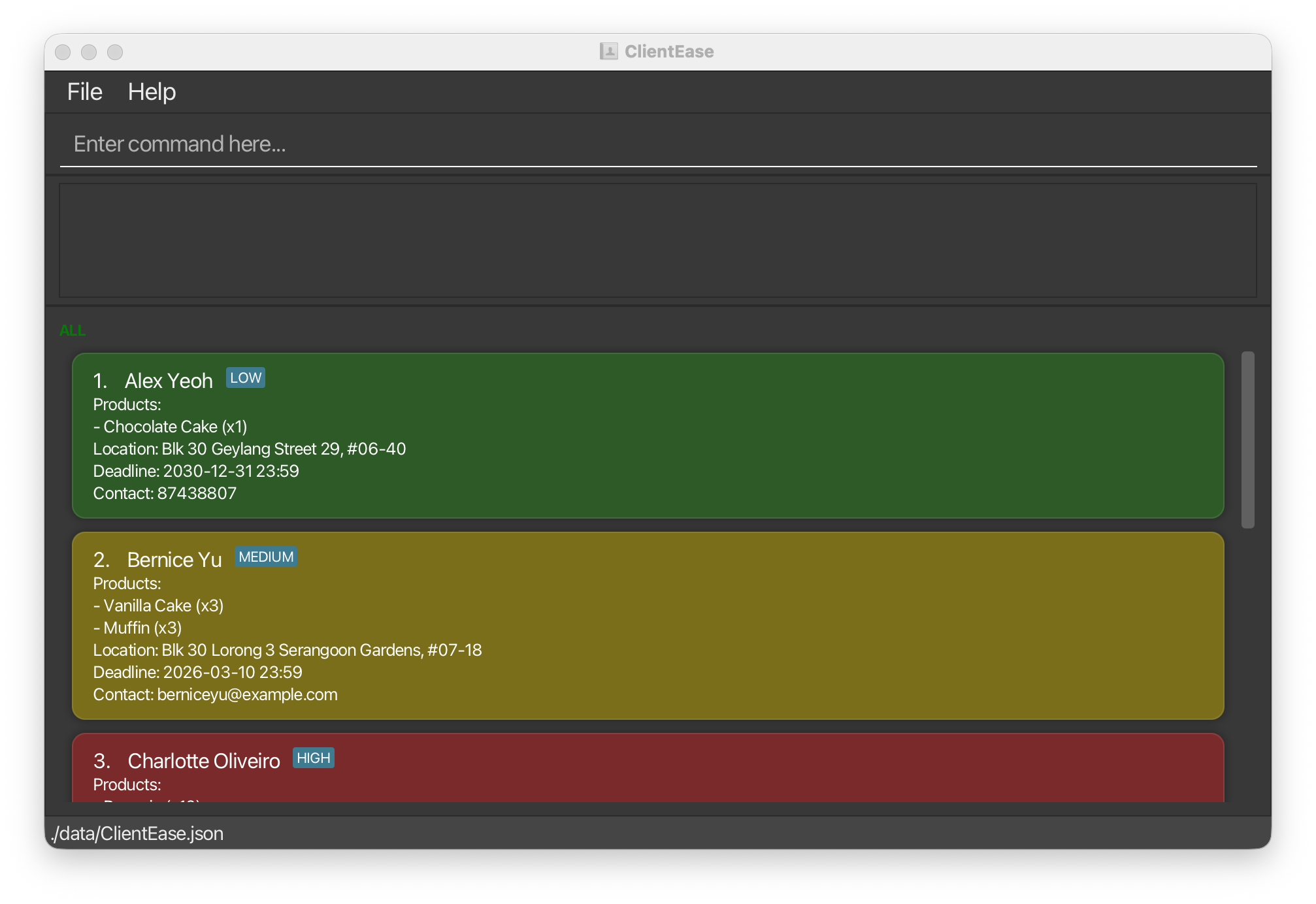
Overview of the Interface
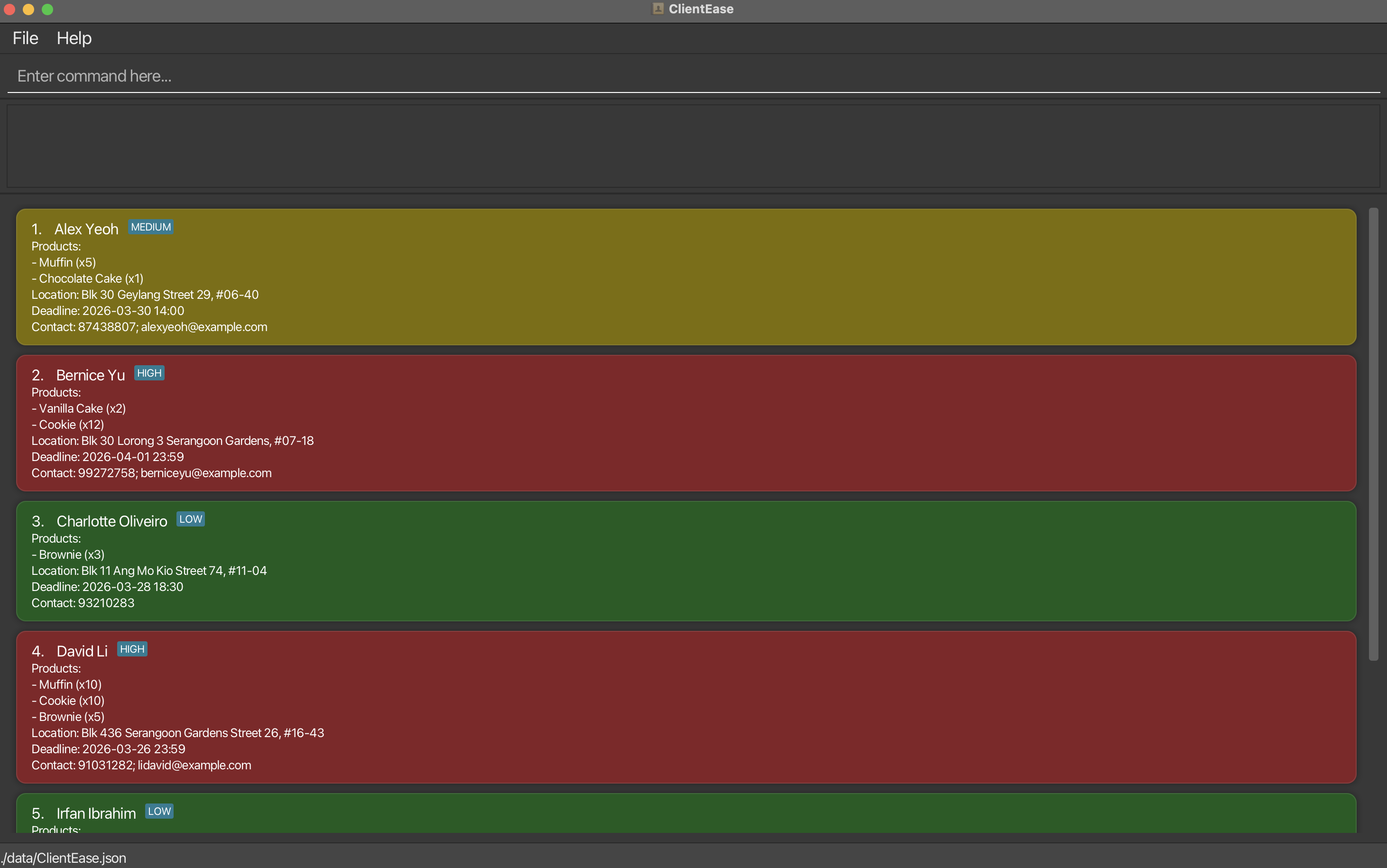
The screenshot above shows the main ClientEase window. The table below describes each numbered area:
| Area | Purpose |
|---|---|
| Command Box (top) | Where you type your commands. |
| Result Display (below command box) | Shows success messages or error feedback after each command. |
| Customer List Panel | Displays all customers. Cards are colour-coded by Priority Level (Green/Yellow/Red) based on total product quantity when products are provided. |
| ALL/FILTERED Status Indicator | A badge that indicates whether the list of customers is filtered or not. |
| Priority Badge | A small tag (LOW, MEDIUM, HIGH) shown next to the name when the customer has products. |
| Status Bar (bottom) | Shows the data file save location. |
Your First Commands
Here is a short walkthrough to get familiar with ClientEase. Try each command by typing it into the command box and pressing Enter.
Step 1 - See what’s already in the app:
list
Expected output: All sample customers are shown in the Customer List Panel.
Step 2 - Add your first real customer:
add name/Jane Tan
    contact/91234567;jane@mybusiness.com
    products/Chocolate Cake:2, Muffin:5
    location/Tampines
    deadline/2025-12-31
Enter the full command as a single line in the application. The text may wrap visually in this guide, but do not press Enter until the full command has been typed.
Expected output: Added Customer: Jane Tan
Step 3 - Find a customer by name:
find name/Jane
Expected output: Only customers whose name matches “Jane” are shown.
Step 4 - Update a customer’s contact details:
edit 1 contact/99887766
Expected output: The first customer’s contact details are updated.
Step 5 - Delete a customer:
delete 1
Expected output: The 1st customer in the list is deleted.
Step 6 - Exit the app:
exit
Expected output: Goodbye! Exiting ClientEase. You have <N> customer(s) saved.
 Tip: All your data is saved automatically after every command. You never need to press a “Save” button.
General Usage Notes
Notes on Command Format
Read this before using any command.
- Words in
UPPER_CASEare parameters you supply. For example, inadd name/NAME, replaceNAMEwith the actual name, e.g.add name/John Doe. - Items in
[square brackets]are optional. For example,name/NAME [contact/CONTACT]can be used with or without a contact. - Parameters can be entered in any order. For example,
add name/John Doe contact/98765432is the same asadd contact/98765432 name/John Doe. - Commands that do not take parameters, such as
help,list,clear,exit, andproduct list, will ignore any extra text you type after them. - Example:
help pleaseworks the same ashelp. - Example:
product list nowworks the same asproduct list. - If a long command wraps visually in this guide, type it as a single line in the application.
- If you are using a PDF version of this guide, be careful when copying multi-line commands — line breaks may cause spaces to be omitted.
Data Normalisation
To keep stored data consistent and reduce accidental duplicates, ClientEase normalises some input before saving it.
Contact numbers
- Spaces in phone numbers are removed before storage.
- Example:
+65 9123 4567is stored internally as+6591234567. - Email addresses are converted to lowercase before storage.
Search behaviour
- The
findcommand matches against stored values. - When searching by contact number, omit spaces in your search term.
- Example: use
find c/+6591234567instead offind c/+65 9123 4567.
 Important: This applies only to spaces in phone numbers. Hyphens and parentheses are not accepted as valid phone-number input.
The “Unique Name” Rule
ClientEase is designed for maximum efficiency. To allow you to delete customers using only their names, instead of relying only on index numbers, the system requires every customer to have a unique name.
Why? This ensures that commands like delete John Doe are always unambiguous and fast to execute.
Handling namesakes: If one customer is John Doe and you need to distinguish a second customer with the same name, we recommend giving the second customer a distinguishing suffix, for example John Doe Jr.
Parameter Reference
This section defines all parameters used across commands.
name/NAME
| Field | Details |
|---|---|
| Required? | Yes for add; optional for edit
|
| Length | 1–100 characters after trimming and space normalisation |
| Allowed characters | ASCII letters (A–Z) and spaces; special characters . ' - are permitted but at least one letter must be present |
| Uniqueness | Names are unique case-insensitively and with repeated spaces collapsed |
| Shorthand | n/ |
products/PRODUCTS
| Field | Details |
|---|---|
| Required? | No |
| Format | Comma-separated product names from the product catalogue |
| Quantities | Append :N to specify a quantity (e.g. Muffin:3); defaults to 1 if omitted. Must be a positive integer — 0 is not accepted |
| Limits | Max 10,000 per product; max 100,000 total |
| Matching | Case-insensitive; spaces normalised |
| Duplicates | Allowed — quantities are summed |
| Shorthand | p/ |
Note: Products must exist in the product catalogue before they can be referenced. Use product add to create them first. Product names cannot contain , or :.
location/LOCATION
| Field | Details |
|---|---|
| Required? | No |
| Allowed characters | Any characters, as long as the value is non-blank after trimming |
| Length | Maximum 200 characters |
| Shorthand | l/ |
deadline/DEADLINE
| Field | Details |
|---|---|
| Required? | No |
| Accepted formats |
yyyy-MM-dd HH:mm, yyyy-MM-dd, dd/MM/yyyy (24-hour time) |
| Default time | 23:59 if no time is provided |
| Validation | Invalid dates (e.g. 2027-02-29) are rejected |
| Shorthand | d/ |
contact/CONTACT
| Field | Details |
|---|---|
| Required? | No |
| Format | Semicolon-separated entries; each entry is a phone number or email address |
| Local phone | 8 digits |
| International phone |
+<2–3 digit country code><1–12 digit number>; spaces in the number are ignored |
Up to 100 characters; must start with alphanumeric; only letters, digits, . and - allowed; exactly one @; domain must start with alphanumeric |
|
| Storage | Phone spaces are removed and emails are lowercased, then entries are sorted |
| Shorthand | c/ |
Important: Empty entries (e.g. trailing or double ;) are invalid.
Features
Viewing Help : help
Opens a help window that provides a quick overview of available commands and a link to the full User Guide.
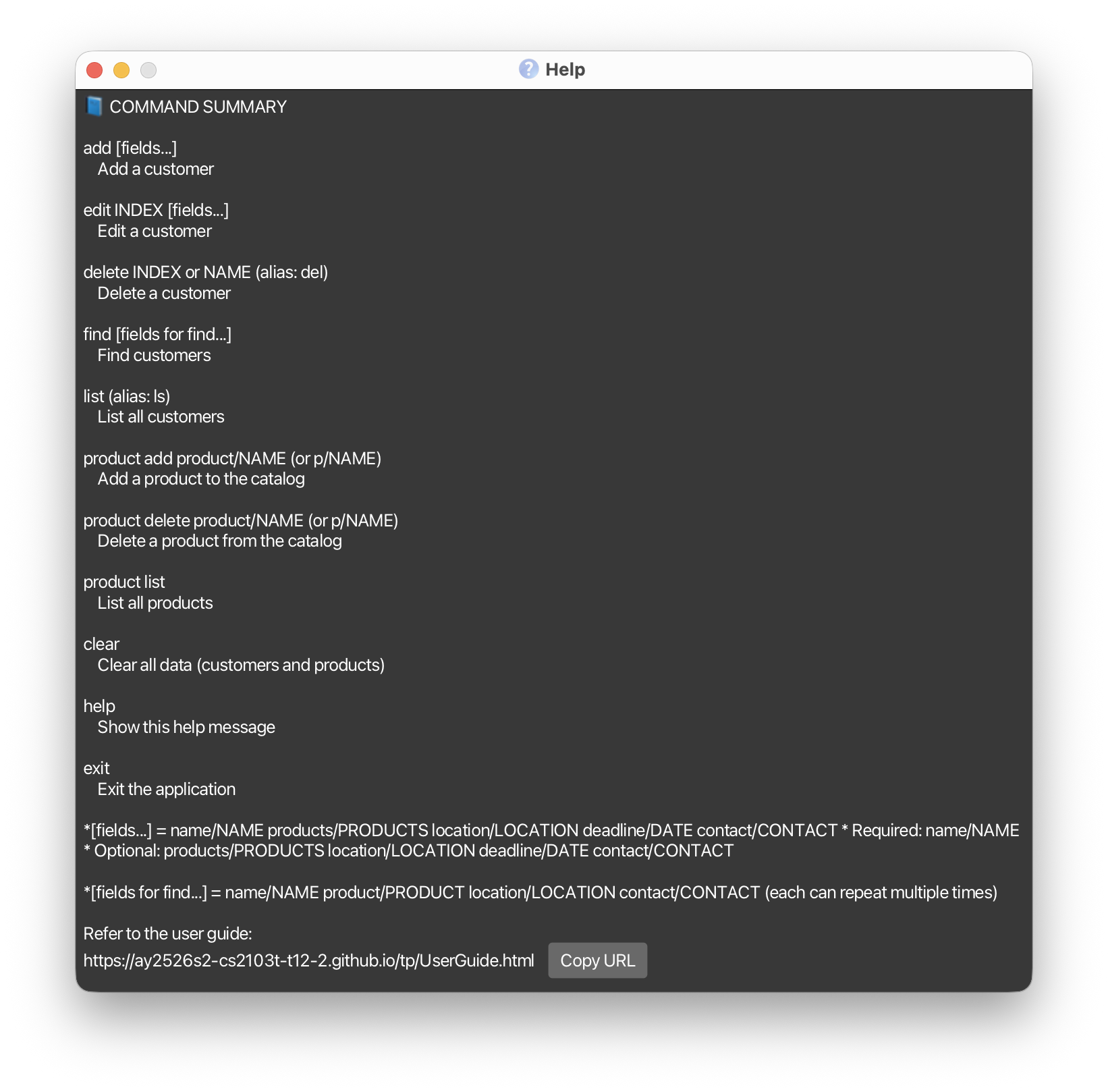
Format: help
Notes:
- The help window does not block the main application — you can continue using ClientEase while it is open.
- If the help window is already open, running
helpagain will focus on the existing window.
Tip: Use the help window as a quick reference when you forget command formats, instead of searching through the full guide.
Adding a Customer : add
Adds a new customer record to ClientEase.
Format:
add name/NAME
    [products/PRODUCTS]
    [location/LOCATION]
    [deadline/DEADLINE]
    [contact/CONTACT]
Parameters: See Parameter Reference — name/NAME, products/PRODUCTS, location/LOCATION, deadline/DEADLINE, contact/CONTACT.
Important: ClientEase automatically tags customers with a priority colour based on the total quantity of products.
- 🟢 Green (Low): 1–5 total items
- 🟡 Yellow (Medium): 6–10 total items
- 🔴 Red (High): 11 or more total items
- No priority tag is shown if the customer has no products.
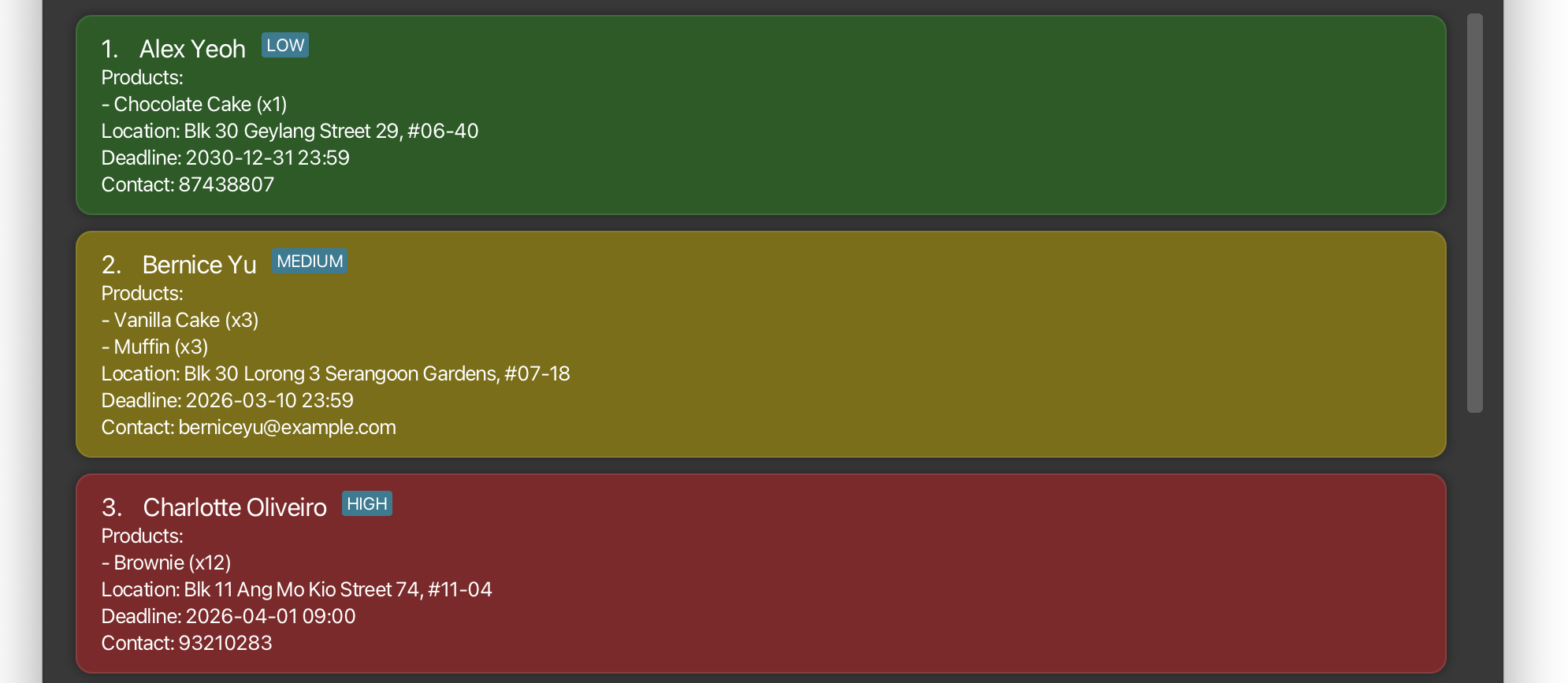
Other constraints:
- Each prefix can appear at most once.
- Unrecognised
<word>/prefixes are rejected. - For optional fields, if a prefix is provided with no value (e.g.
products/), the field is treated as empty. - Non-ASCII characters (e.g. Chinese) are rejected in
name/andcontact/.
⚠️ Warning: If you try to add a customer with a name that already exists (case-insensitive, extra spaces ignored),
ClientEase will reject the entry and display an error. Check the existing list with list before adding.
Products are shown as a bulleted list with quantities (e.g., - Muffin (x2)). If no products are provided, the card shows Products: None.
Examples:
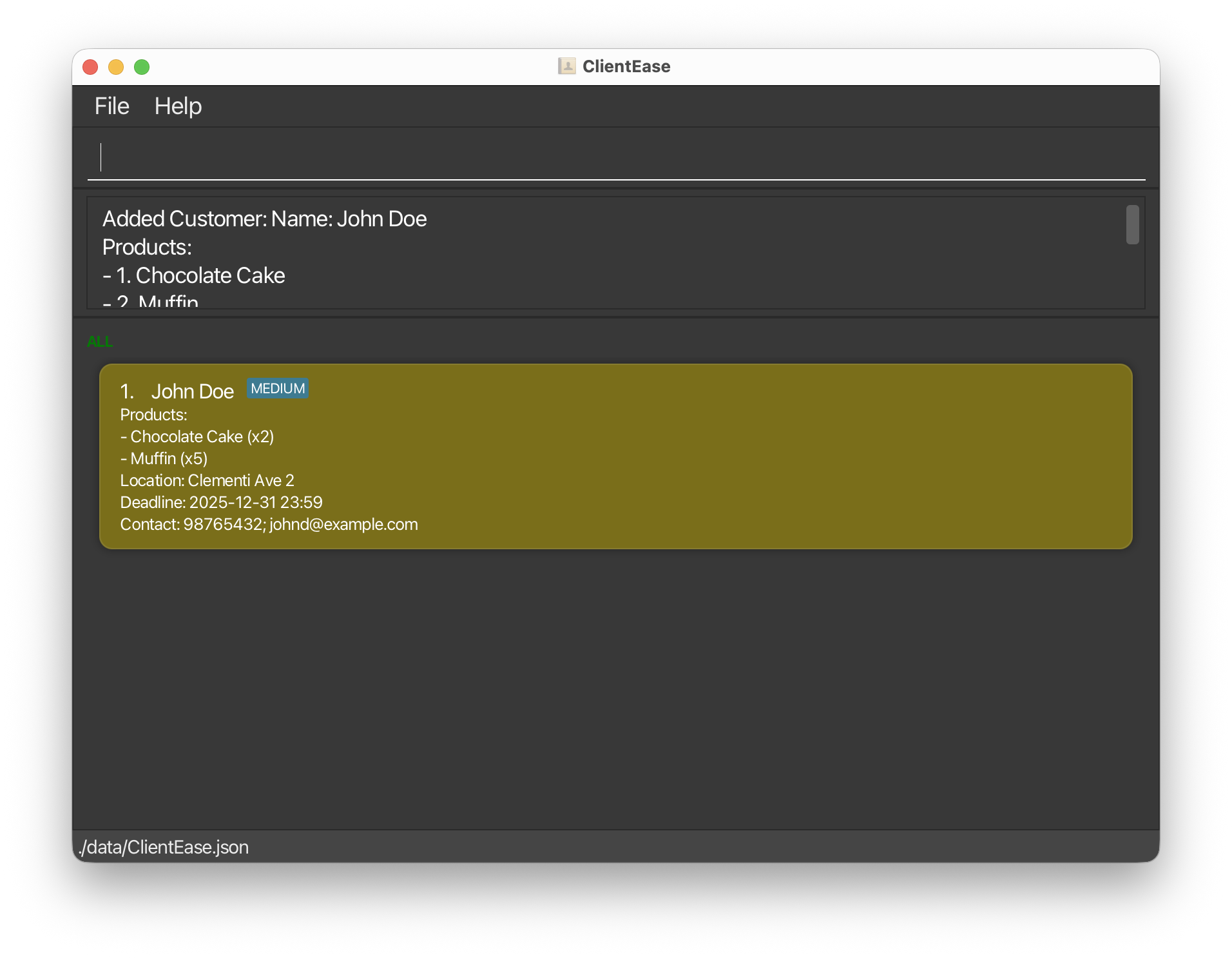
Example 1: Add a customer with full details
add name/John Doe
    contact/98765432;johnd@example.com
    products/Chocolate Cake:2, Muffin:5
    location/Clementi Ave 2
    deadline/2025-12-31
Enter the full command as a single line in the application. Effect: Adds a customer named John Doe with products, location, deadline (31 Dec 2025 at 23:59), and contact details.
Example 2: Add a customer with name only
add name/Sarah Lim
Effect: Adds a customer named Sarah Lim with no other details. You can edit to fill in the rest later.
Listing All Customers : list
Shows a list of all customers in ClientEase.
Format: list
Managing Products : product
Manages the product catalogue used by add and edit.
Formats:
product add product/NAME   (or p/NAME)
product delete product/NAME   (or p/NAME)
product list
Notes:
- Product names are case-insensitive with spaces normalised.
- Product names must be non-blank and cannot contain
,or:. - You cannot delete a product if any customer is currently using it.
-
productcommands, subcommands, and theproduct/orp/prefix are case-insensitive. -
product listshows products in alphabetical order. - If the catalogue is empty,
addandeditwill reject anyproducts/input and show “(no products in catalog)” in the allowed list.
Examples:
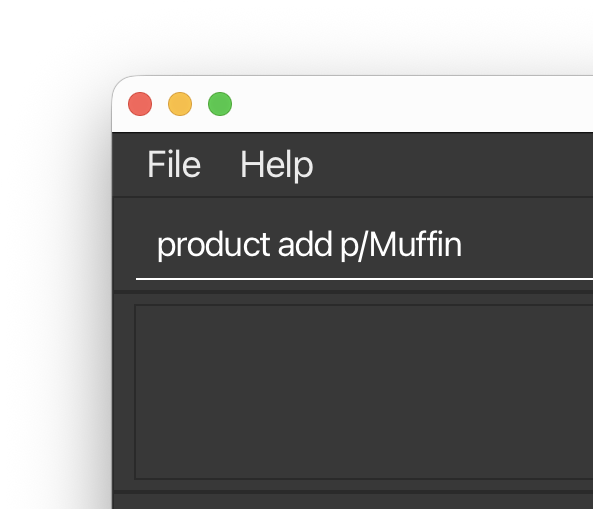
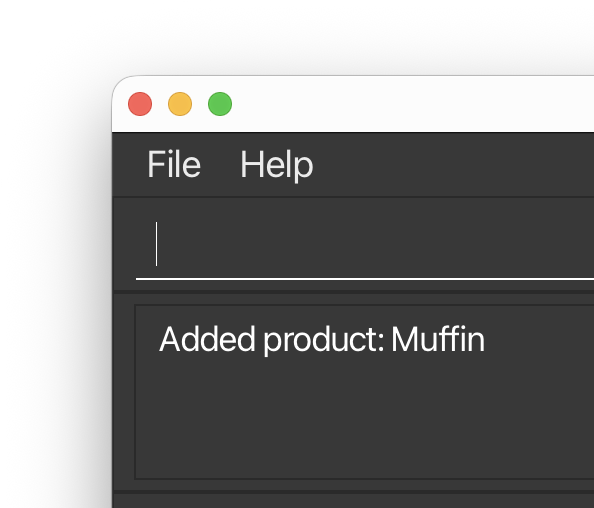
product add p/Muffinproduct delete product/Muffinproduct list
 |
 |
Editing a Customer : edit
Edits an existing customer in ClientEase.
Format:
edit INDEX
    [name/NAME]
    [products/PRODUCTS]
    [location/LOCATION]
    [deadline/DATE]
    [contact/CONTACT]
Parameters: See Parameter Reference — name/NAME, products/PRODUCTS, location/LOCATION, deadline/DEADLINE, contact/CONTACT.
- Edits the customer at the specified
INDEX. The index refers to the index number shown in the displayed customer list. The index must be a positive integer 1, 2, 3, … - At least one of the optional fields must be provided.
- Existing values will be updated to the input values.
-
products/replaces the customer’s entire current product list. Quantity0is not accepted. - To remove one product while keeping others, re-enter the full list of products you want to keep.
- To remove all products from a customer, use an empty products field:
edit INDEX products/.
Examples:
Example 1: Edit a contact
edit 1 contact/91234567
Effect: Updates the contact of the 1st customer to 91234567.
Example 2: Edit multiple fields
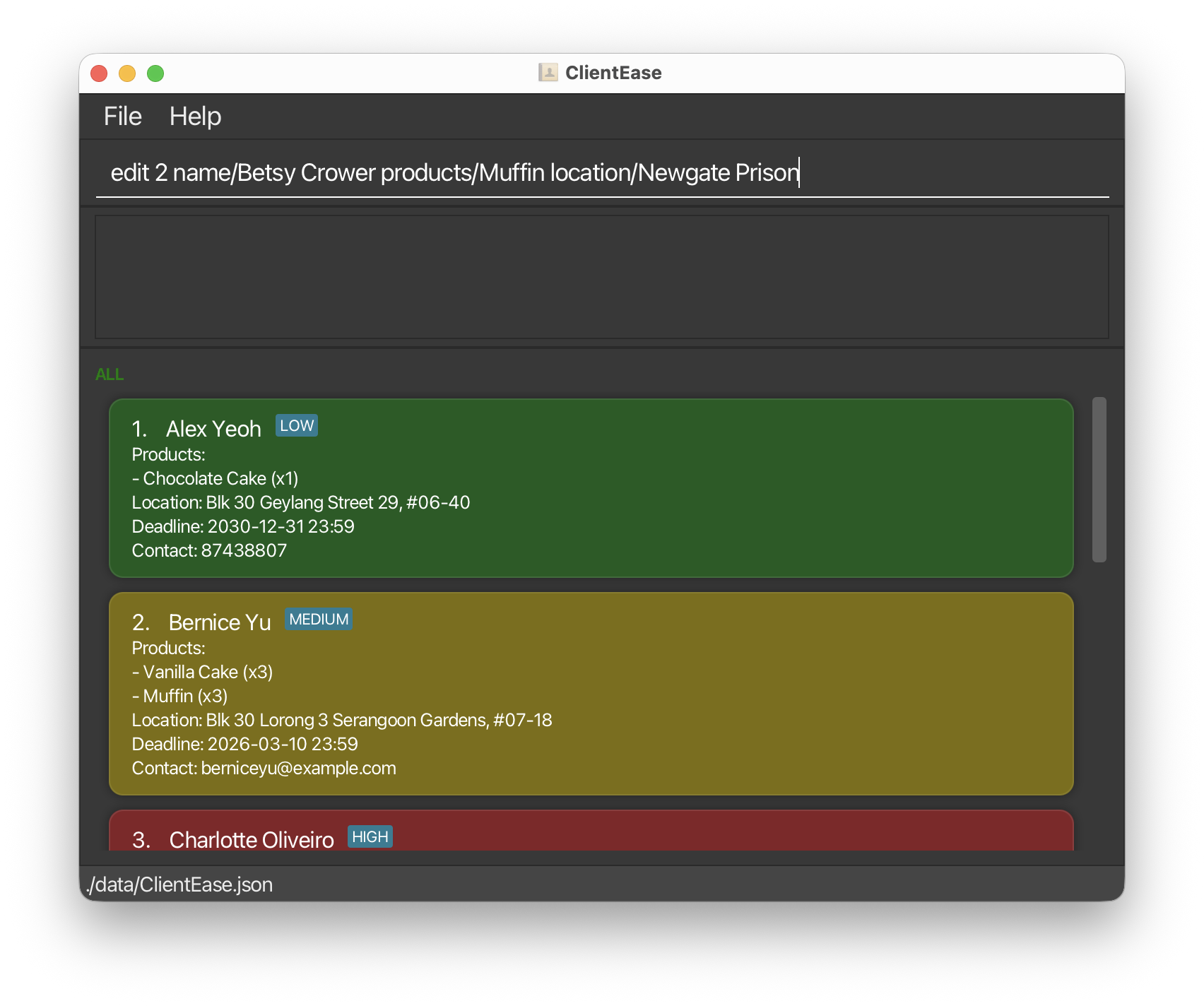
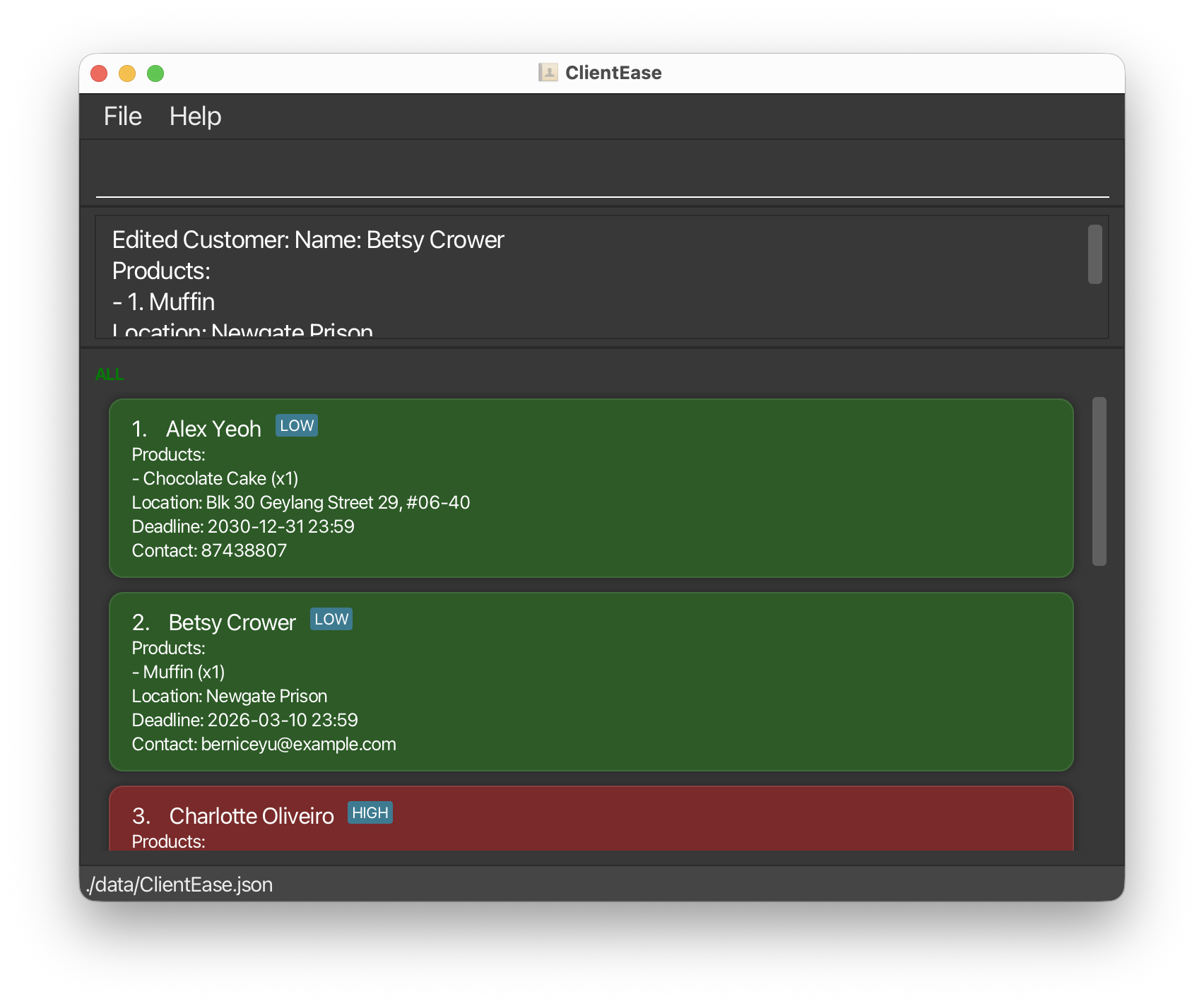
edit 2 name/Betsy Crower
    products/Muffin
    location/Newgate Prison
Effect: Updates the name, products, and location of the 2nd customer.
Example 3: Remove one product but keep another
edit 1 products/Muffin:2
Effect: Replaces the customer’s entire product list so that only Muffin:2 remains.
Example 4: Remove all products
edit 1 products/
Effect: Clears the customer’s product list completely.
Finding Customers : find
Finds customers whose details match the given keywords.
Format:
find [name/NAME]...
    [contact/CONTACT]...
    [location/LOCATION]...
    [product/PRODUCT]...
Parameters: See Parameter Reference — contact/CONTACT, location/LOCATION.
Short prefixes are supported: n/ for name/, c/ for contact/, l/ for location/, and p/ for product/.
-
NAMEandPRODUCTare single words;CONTACTandLOCATIONare strings. Each field can repeat multiple times. - At least one field prefix must be provided. Empty values are ignored; if all provided fields are empty (e.g.
find n/), no customers will be matched. - The search is case-insensitive. e.g.
hanswill matchHans. - The name, contact, location, and product list of each customer will be searched.
- For name and products, only full words will be matched. e.g.
Hanwill not matchHans. - For location and contact, any substring will be matched. e.g.
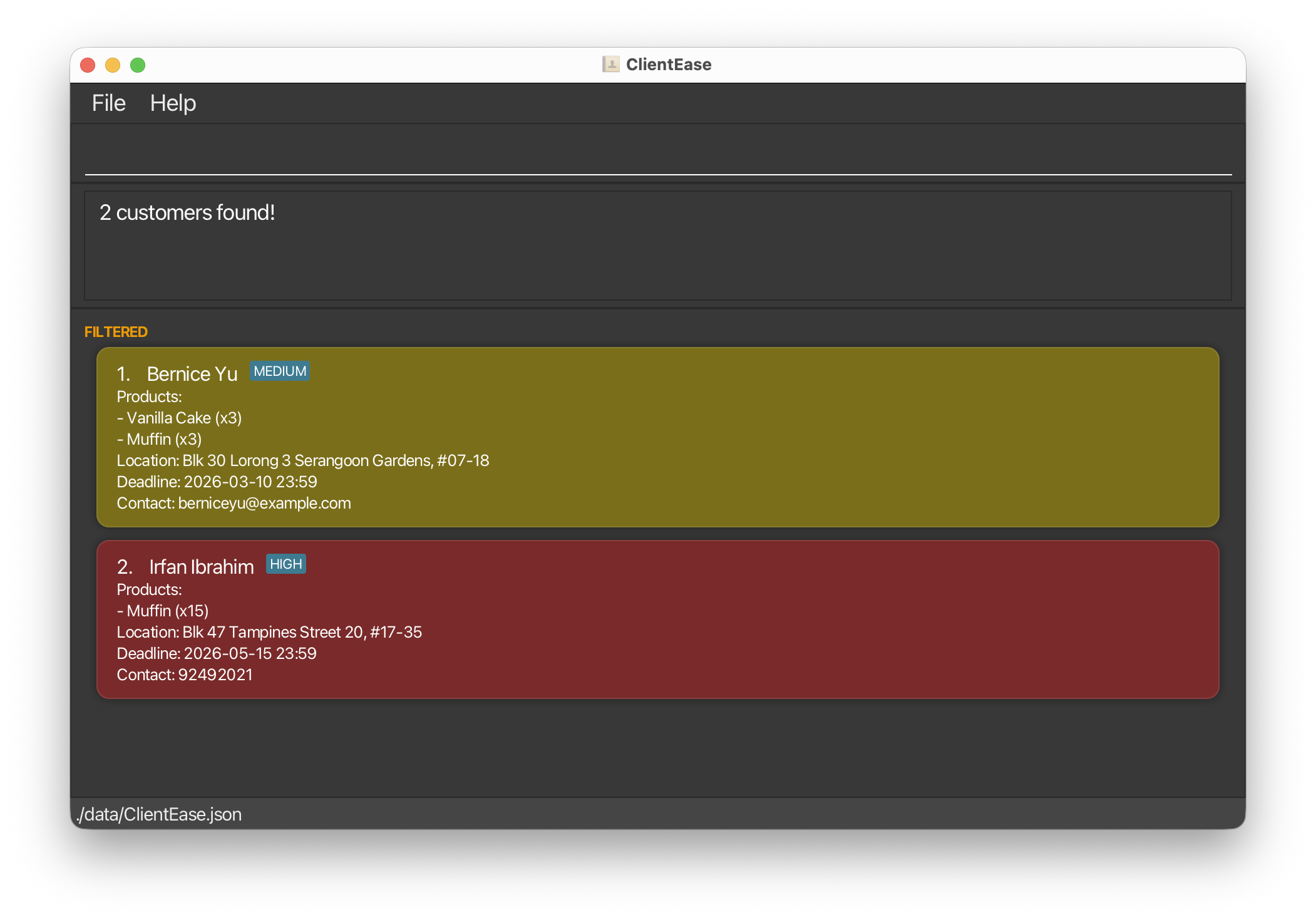
123will match1234@mail.com. - Searching multiple personal details (name, contact, or location) or multiple products will match any of those items; however, searching across both categories will only show results that match at least one from each.
Tip: Phone numbers are matched against the stored normalised value with spaces removed. For example, if a number is stored as +6591234567, search with find c/+6591234567, not find c/+65 9123 4567.
Examples:
-
find name/JohnreturnsjohnandJohn Doe -
find name/alex name/davidreturnsAlex Yeoh,David Li -
find name/alex name/david product/cakereturnsDavid Li, whereAlex YeohhasMuffinandDavid LihasChocolate Cake

Deleting a Customer : delete
Deletes a customer from ClientEase using either their displayed index or exact name.
Format:
delete INDEX
- Deletes the customer at the specified
INDEX. - The index refers to the index number shown in the displayed customer list.
- The index must be a positive integer 1, 2, 3, …
Examples:
Example 1: Delete by index
delete 2
Effect: Deletes the 2nd customer in the currently displayed list.
Example 2: Delete after filtering
find name/Betsy
delete 1
Effect: Deletes the 1st customer in the filtered results.
delete NAME
- Deletes the customer with the given
NAME. - Matching is case-insensitive and ignores extra spaces.
Examples:
delete John Doe
Effect: Deletes the customer named John Doe (case-insensitive, extra spaces ignored).
Clearing All Customers : clear
Clears all entries from ClientEase.
Format: clear
 Warning: This action is irreversible and will permanently delete all customer and product records. Consider backing up
data/ClientEase.json (see Saving the Data) before running this command.
Exiting the App : exit
Exits the program after displaying a farewell message with the current customer count.
Format: exit
- A farewell message will be displayed:
Goodbye! Exiting ClientEase. You have customer(s) saved. - The app will close automatically after a short delay.
Saving the Data
ClientEase automatically saves your data to disk after every command that changes data. There is no Save button and no need to save manually.
Your data is stored at:
[home folder]/data/ClientEase.json
Editing the Data File
Advanced users may edit the data file directly using any text editor.
Caution: If your changes to the data file make its format invalid, ClientEase will discard all data and start with
an empty data file at the next run. It is recommended to back up the file before editing it.
Certain edits can also cause ClientEase to behave in unexpected ways (e.g., if a value entered is outside the
acceptable range). Edit the data file only if you are confident that you can update it correctly.
FAQ
Q: How do I transfer my data to another computer?
A: Install the app in the other computer and overwrite the empty data file it creates with the file that contains the data of your previous ClientEase home folder.
Q: Can I have two customers with the same name?
A: No. ClientEase treats names as unique identifiers (case-insensitive, extra spaces ignored). If two customers share a
name, consider differentiating them, e.g. Dr John Doe and John Doe Jr.
Known Issues
-
When using multiple screens, if you move the application to a secondary screen, and later switch to using only the primary screen, the GUI will open off-screen. Workaround: delete the
preferences.jsonfile created by the application before running the application again. -
If you minimise the Help Window and then run the
helpcommand (or use theHelpmenu, or the keyboard shortcutF1) again, the original Help Window will remain minimised, and no new Help Window will appear. Workaround: manually restore the minimised Help Window. -
In certain window dimensions, the layout priority settings may cause names to truncate despite available horizontal space. Workaround: Increase the application window width until the text fully expands.
Command Summary
| Action | Format | Example |
|---|---|---|
| Help | help |
help |
| Add |
add name/NAME[products/PRODUCTS][location/LOCATION][deadline/DEADLINE][contact/CONTACT]
|
add name/John Doeproducts/Muffin:2location/Clementi
|
| List | list |
list |
| Edit |
edit INDEX[name/NAME][products/PRODUCTS][location/LOCATION][deadline/DATE][contact/CONTACT]
|
edit 2 name/James Leecontact/jameslee@example.com
|
| Find |
find [name/NAME]...[contact/CONTACT]...[location/LOCATION]...[product/PRODUCT]...
|
find name/James |
| Delete (index) | delete INDEX |
delete 3 |
| Delete (name) | delete NAME |
delete John Doe |
| Clear | clear |
clear |
| Exit | exit |
exit |
| Product add |
product add product/NAMEor product add p/NAME
|
product add product/Muffin |
| Product delete |
product delete product/NAMEor product delete p/NAME
|
product delete p/Muffin |
| Product list | product list |
product list |
Tip: Shorthand prefixes for add, edit, and find: n/ for name/, p/ for products/ and product/, l/ for location/,
d/ for deadline/, and c/ for contact/. Example: add n/John Doe p/Muffin is equivalent to
add name/John Doe products/Muffin.
Glossary
| Term | Definition |
|---|---|
| CLI | Command Line Interface - a text-based way of interacting with software by typing commands |
| GUI | Graphical User Interface - the visual window of the app |
| Customer | A record representing an individual who has placed or may place an order with your business |
| Command | A text instruction you type into the command box to perform an action |
| Parameter | A piece of information supplied alongside a command, e.g. name/John Doe
|
| Prefix | The short label before a parameter value, e.g. name/, products/, contact/
|
| Suffix | A letter or set of letters added to the end of a person’s last name to indicate their family lineage, honorific title, or professional qualification |
| Index | The number shown beside each customer in the displayed list. It starts from 1. |
| Deadline | A date (and optional time) representing when an order is due |
| Contact | Consolidated contact details (phone and/or email) for a customer, separated by semicolons |
| Product | An item from the product catalogue associated with a customer’s order, listed under Products |
| Home folder | The folder where clientease.jar and the data/ directory are stored |
| JSON file | The data file (ClientEase.json) where ClientEase stores all customer records |